
When a form asks for a resume, proposal, proof of insurance, or product brief, filling the text fields is only half the job. The attachment step is often where a promising AI form filler stops being useful.
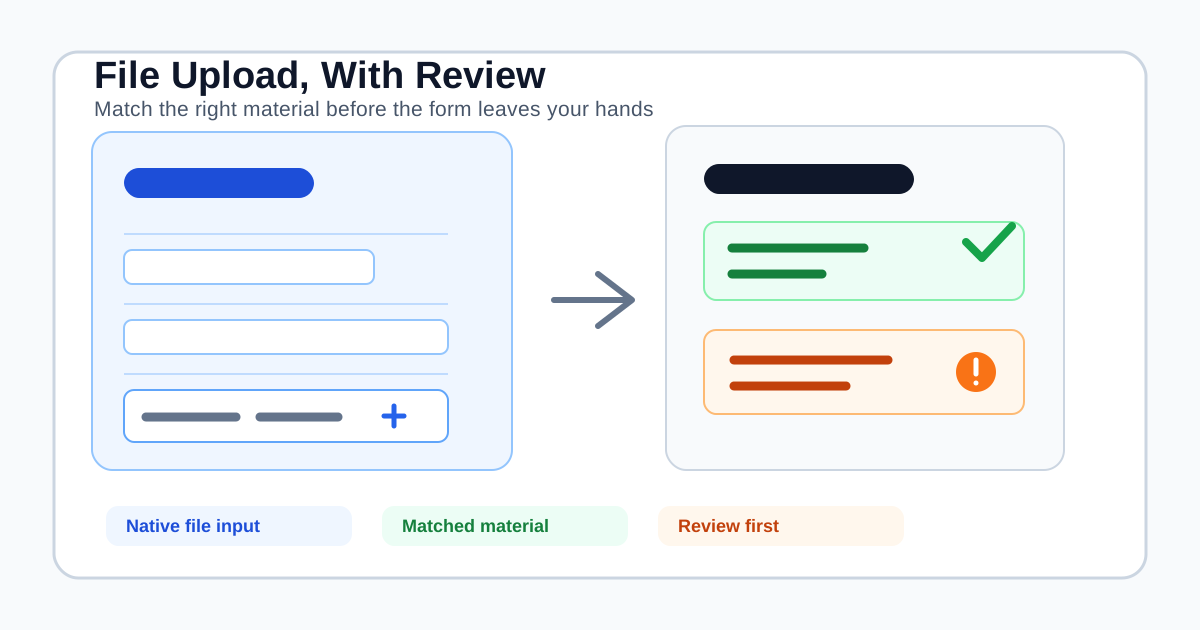
The short answer is: some AI form fillers can help with file uploads, but “supports attachments” can mean several very different things. A tool may use a document as context without attaching it. It may open a file picker and leave you to choose a file. Or it may place one already-approved material into a compatible native file input.
Those are different workflows with different privacy and accountability implications. This guide explains what to check before buying, where SmartAutoFill fits, and when an attachment-aware form filler is the wrong tool.
Start with the file input, not the marketing claim
On the web, a file upload usually begins with an HTML input whose type is file. MDN's reference explains that the control lets a user choose one or more files from device storage. The browser then exposes the selected files to the page for upload or local processing.
That detail matters because a visible upload button does not guarantee that an extension can treat it like an ordinary text field. The page may use:
- A native file input that accepts one file.
- A native file input with
multipleenabled. - An
acceptrule that limits extensions or MIME types. - A custom drag-and-drop widget built around a hidden input.
- An iframe or a site-specific upload component outside the extension's current scan.
The accept attribute is guidance, not proof that a file is valid. The destination may still validate size, content, naming, or document dates after selection. A tool that chooses a file for you cannot decide whether the document is legally current, approved for this customer, or appropriate for this particular submission.
Four meanings of “file upload support”
When comparing AI form fillers, separate these capabilities.
1. Document context only
The tool reads a PDF, image, or pasted document and uses it to draft answers in text fields. The file itself is never attached to the destination form.
This is useful for prompts such as “describe your service,” “summarize your experience,” or “explain your security controls.” It is not upload automation. You still select the requested file yourself.
2. File-picker assistance
The tool recognizes that a page asks for a document, then helps you reach the upload control. You choose the local file in the browser's picker.
This can be a good privacy boundary. The extension does not need a broad file library or permission to choose among stored documents. The tradeoff is that you still do the attachment step manually.
3. Stored-material matching
The tool keeps a set of eligible materials and selects a likely match for a compatible upload field. This is more convenient, but it raises a new question: what exactly makes the match safe?
A filename such as latest-resume.pdf is not enough. The workflow should consider the field label, page context, material type, and any source restrictions. It should also show you what was selected before the form is sent.
4. Autonomous upload and submission
Some browser agents combine file selection with multi-step navigation, clicking, and submission. That may be appropriate in a tightly controlled internal workflow with explicit approvals, audit logs, and a clear system owner. It is a poor default for sensitive forms.
Do not treat “the browser visibly did it” as the same thing as “the submission was correct.” A file can be confidential, outdated, intended for a different recipient, or attached to the wrong record.
How SmartAutoFill handles attachments
SmartAutoFill is a reviewable AI form filler Chrome extension. It scans the visible page, uses selected profile or context, and applies a draft to compatible fields. The supported fields and data-handling reference documents the current boundary.
For file inputs, the current behavior is narrow:
- File filling is available in paid hosted mode through AI Materials Pro.
- AI Materials can use selected text, web pages, PDFs, Markdown, PNG, JPEG, and WebP as context, subject to the current limits in the pricing details.
- When a compatible native file input has a clear match, hosted mode can place one matched stored material into it.
- It does not attach several matched files to one control.
- Custom-provider mode does not support AI Materials or file filling.
- You inspect the resulting page and selected file before submitting manually.
That is intentionally different from an agent that crawls through a site, chooses arbitrary local files, and sends the form without a final check. SmartAutoFill drafts and fills reviewable fields; it does not blindly auto-submit.
A practical attachment workflow
For a real workflow, use this sequence:
- Identify the recipient and purpose. Is this a job application, client intake, vendor review, or test page? The same PDF may be suitable for one and wrong for another.
- Choose a narrow source set. Add only the materials needed for this task. Do not upload a whole drive or an unfiltered company export.
- Open the actual form. Check whether the upload control is native, whether it accepts one or several files, and whether the page's instructions name a required format.
- Run the fill in Safe Mode. Let the extension draft ordinary fields and consider an attachment only when the match is clear. More Mode can broaden hosted planning on lower-risk pages, but it does not remove final guards.
- Inspect the selected file. Verify the filename, version, recipient, file type, and any expiration date. Open the document when the decision depends on its contents.
- Review every generated value. Correct answers that require judgment, especially legal, financial, identity, security, consent, and policy statements.
- Review, then submit manually. The final click should belong to the person accountable for the record.
Before trying a production workflow, use the public AI form filler test page with non-sensitive sample data. This helps reveal whether the page uses ordinary controls and whether the browser behavior matches the form's instructions.
Why native controls and custom widgets matter
A native file input has a browser-defined interaction model. The user selects a file, the page receives a FileList, and the form later sends the file as part of a request. MDN's documentation on the files property describes that selected-file list.
Real sites often add another layer on top:
- A drag-and-drop zone may wrap a hidden input.
- A document-management widget may upload immediately, before the rest of the form is submitted.
- A multi-step form may replace the input after validation.
- A custom component may keep its state outside ordinary DOM controls.
- An iframe may isolate the control from the extension's page scan.
This is why no honest form filler should promise universal upload support. SmartAutoFill works most reliably with visible, ordinary browser controls and does not guarantee support for every JavaScript widget used by job portals, CRM products, or internal tools. The AI form filler test page is a better pre-purchase check than a generic “works anywhere” claim.
What to ask before you buy
Use these questions to compare products.
Does the tool attach files or only read them?
Read the workflow description carefully. “Upload documents for AI context” may describe sending a source to the tool, not attaching that source to the destination form. Those are separate actions.
Which file types and limits apply?
Check extensions, file size, number of sources, and whether the destination's accept rule is respected. SmartAutoFill's current hosted materials include PDF, Markdown, PNG, JPEG, and WebP sources; DOC and DOCX are not exposed as supported AI Materials uploads. A native destination file input may still ask for a format that you must provide and verify yourself.
Where are the files stored?
Ask whether materials are stored in browser storage, a hosted account, a temporary request, or a third-party model provider. SmartAutoFill's data-handling reference explains the separation between hosted request summaries and browser-local recent-run data. It also describes that a matched file may remain as a browser-local Base64 copy in recent-run storage until replaced or cleared.
Can the user see the exact selected file?
The answer should be yes. A useful attachment workflow makes the selection inspectable before submission. If a product only reports “upload complete,” it may be hiding the detail you need to catch a wrong version.
What happens when there is no confident match?
The safest outcome is to leave the field for manual handling or ask the user to choose. A tool should not invent a document, pick a vaguely similar certificate, or attach the first file in a folder.
Does the tool submit automatically?
For sensitive or external forms, manual submission is a meaningful control. SmartAutoFill does not navigate sites or submit forms. You review values on the page and decide whether to continue.
Where attachment-aware filling is a good fit
An attachment-aware workflow can make sense when the task has a stable source and an accountable operator:
- A recruiter chooses the correct resume for an application and reviews the answers.
- A sales or operations user attaches a current product brief to a partner form.
- A vendor team selects one approved security document for a questionnaire.
- A consultant uses a project brief to draft answers, then attaches the version approved for that client.
- A QA tester uses fake documents on a staging form to verify the upload path.
In each case, the material is part of a known workflow, not an arbitrary file selected because its name looks close. The tool reduces repeated context preparation while leaving the decision visible.
The negative ICP: when this is the wrong tool
Do not buy a general AI form filler for:
- Credential stuffing, CAPTCHA or OTP bypass, or account takeover.
- Payment cards, bank instructions, passwords, or verification secrets.
- Bulk uploading the same document to unreviewed destinations.
- Sending spam, fake applications, or fabricated survey responses.
- Replacing a document-management system, approval process, or regulated records platform.
- Uploading customer data without an approved privacy and retention path.
SmartAutoFill also is not a password manager, payment autofill tool, or autonomous browser operator. Sensitive fields remain outside the supported filling workflow, and the user remains responsible for legal, financial, identity, consent, and attachment decisions.
The buying decision in one sentence
Choose a file-capable AI form filler when you need context-aware drafting plus a controlled, reviewable attachment step. Choose a workflow platform or integration when you need batch processing, approvals, audit logs, or system-of-record updates. Choose a password manager or payment tool for credentials and payments.
SmartAutoFill sits in the middle: more useful than copying facts from documents into every form, but deliberately short of an agent that chooses and submits everything. Start with the AI form filler product overview, test a representative page, then review SmartAutoFill pricing if the workflow needs hosted AI Materials.
The right question is not “Can this extension upload a file?” It is “Can the right person verify the right file, on the right form, before the right organization receives it?” That is the trust path worth paying for.